Customize your page
Colors, logo, messages, Google link, social media: everything is set in the Settings tab. A live preview shows the result before you save.
Don't forget to save
Changes on this page only apply after you click Save, at the very bottom.
Appearance
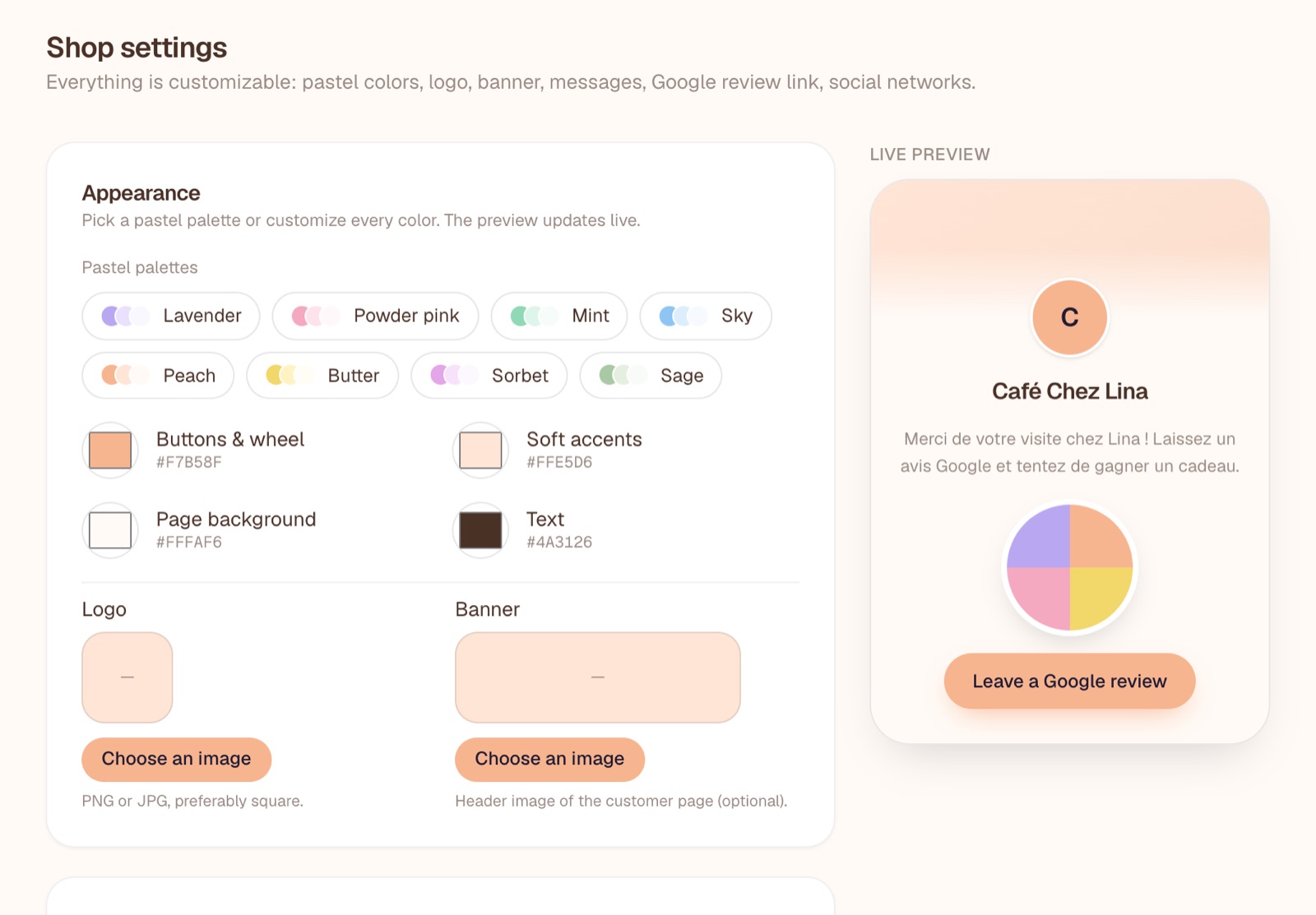
Pastel palettes
Click a palette (Lavender, Powder pink, Mint, Sky, Peach, Butter, Sorbet, Sage): all four colors are set at once. You can then adjust each color individually:
- Buttons & wheel: the main color (buttons, wheel outline, QR poster).
- Soft accents: light backgrounds, steps and decorative shapes.
- Page background: the overall background of the customer page.
- Text: the color of titles and text. Keep it dark so it stays readable.
Logo and banner
- Logo: PNG or JPG, preferably square. It appears in a circle on the customer page, in the center of the wheel and on the QR poster.
- Banner (optional): a header image at the top of the customer page, for example a photo of your shopfront or products.
Click Choose an image. The image is resized automatically; it must not exceed 2 MB. Use Replace or Remove to change it.
Tip
Without a logo, the first letter of your shop name is shown instead, in your main color.
General
- Shop name: shown at the top of the customer page and on the poster.
- Business type: restaurant, dry cleaner, hair salon, bar, shop or other.
- Google review link: the page where your customers leave their review (see below).
- Welcome message: the sentence under your name on the customer page.
- Win message: the sentence shown above the prize won, for example “Congratulations, you won:”.
Finding your Google review link
Open your Google Business Profile
On business.google.com, or by searching your business name on Google while signed in to the account that manages it.
Click “Ask for reviews”
Google shows a short link such as https://g.page/r/…/review.
Copy this link into “Google review link”
Save, then test it from the customer page: the Google review window should open directly.
Customer journey
- Delay between plays (hours): how long the same person must wait before playing again from the same phone. For example 24 for once a day, 168 for once a week, 0 for no limit.
- Ask the customer to confirm they left a review before playing: adds an “I've left my review” step after Google opens. Unchecked, the customer goes straight to the wheel.
Social media
Enter your Instagram, Facebook and TikTok links (all optional): they appear as “Follow us” icons on the customer page.
The option Require the customer to confirm they followed your socials before playing adds a “Social” step with an “I've followed” button before the wheel. It only appears if at least one link is filled in.
Check the result
After saving, open Dashboard → View customer page ↗ to see exactly what your customers see.